Multiple Camera Feeds on Screen at the Same Time
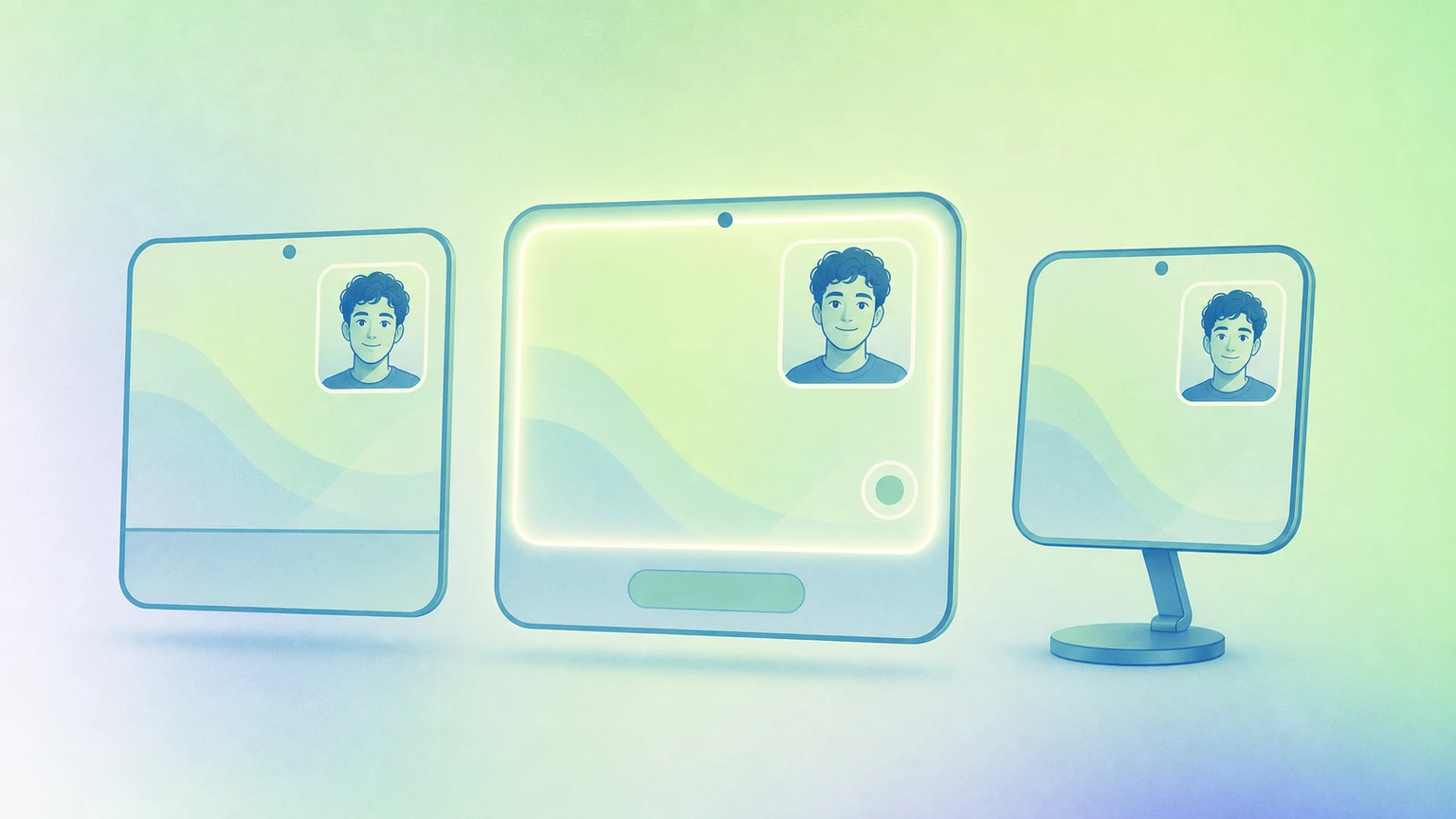
Show more than one live camera feed on your Mac screen at once. FaceScreen is the only app that supports this, with independent styling and placement for each feed.

One screen, multiple live camera feeds
Most camera overlay tools stop at one feed. FaceScreen does not.
FaceScreen is the only app that lets you show multiple live camera feeds on screen at the same time on your Mac. You can run different cameras together, place each feed where it helps your audience most, and keep everything visible while you present, record, or teach.
Why this matters in practice
With one camera, you are forced to choose one perspective. With multiple feeds, viewers get context without you repeating yourself.
Each feed in FaceScreen can be controlled independently, so you can adjust placement, shape, size, and style per camera to match your workflow.
Practical use cases
1. Product demos with face + hardware angle
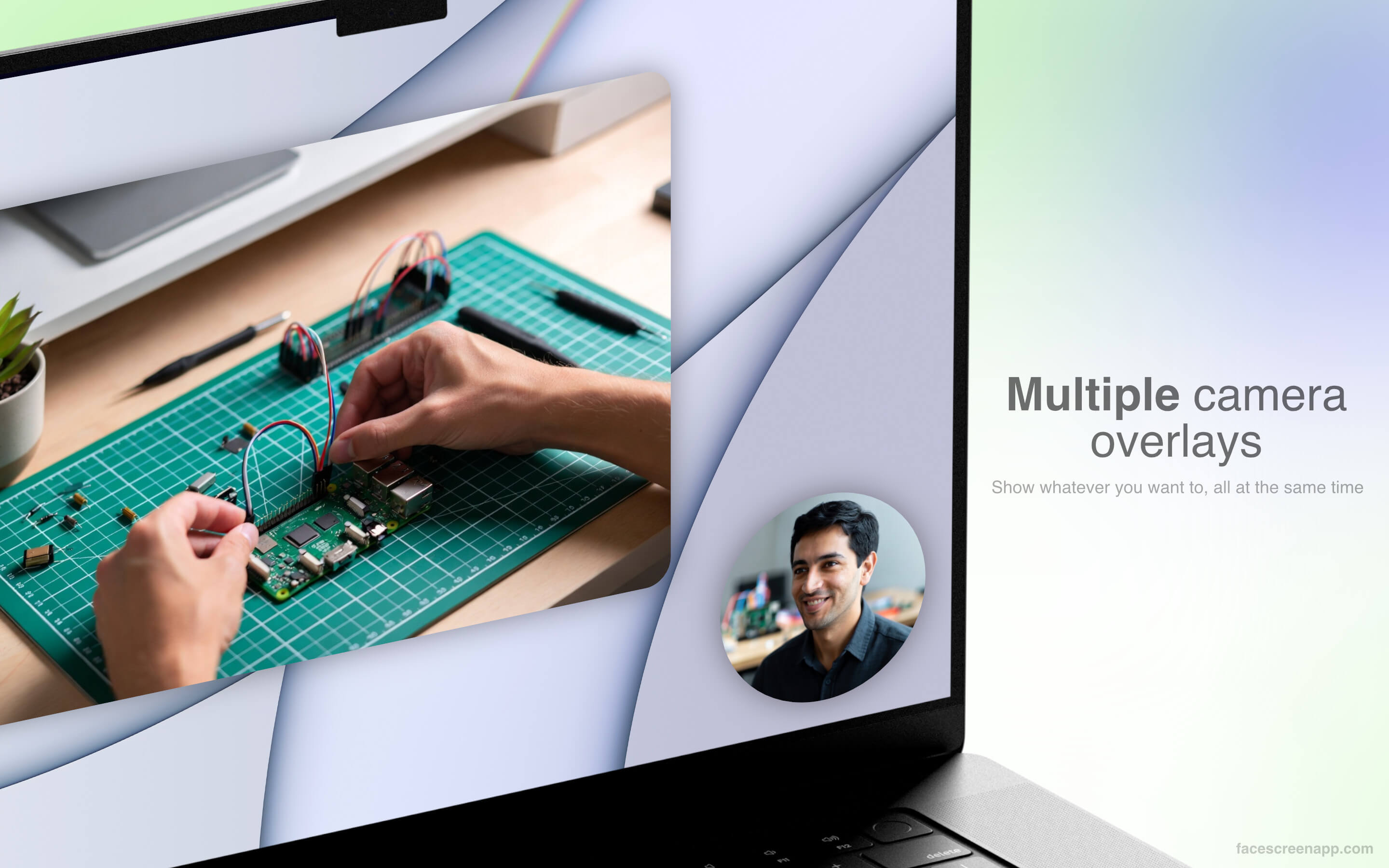
Show your talking-head camera for connection and trust, while a second feed points at a phone, keyboard, or physical device you are demonstrating.
2. Teaching and tutorials
Keep one camera on your face and another on a whiteboard, notebook, or desk setup. Students follow both explanation and action in real time.
3. Support and onboarding calls
During customer onboarding, one feed can stay on you while a second feed shows a device setup step. This cuts back-and-forth and speeds up issue resolution.
4. Creator and livestream workflows
Use one camera for your main framing and another for overhead detail shots (like drawing, electronics, or unboxing) without switching scenes every few seconds.
5. Team walkthroughs and interviews
For remote team walkthroughs, keep one camera on the speaker and another on a prototype or hardware. In interview-style content, show host and guest angles simultaneously.
FaceScreen makes multi-feed simple
You do not need a complicated broadcast setup to get multi-camera results. Install FaceScreen, add your cameras, and arrange feeds where they are useful for your audience.
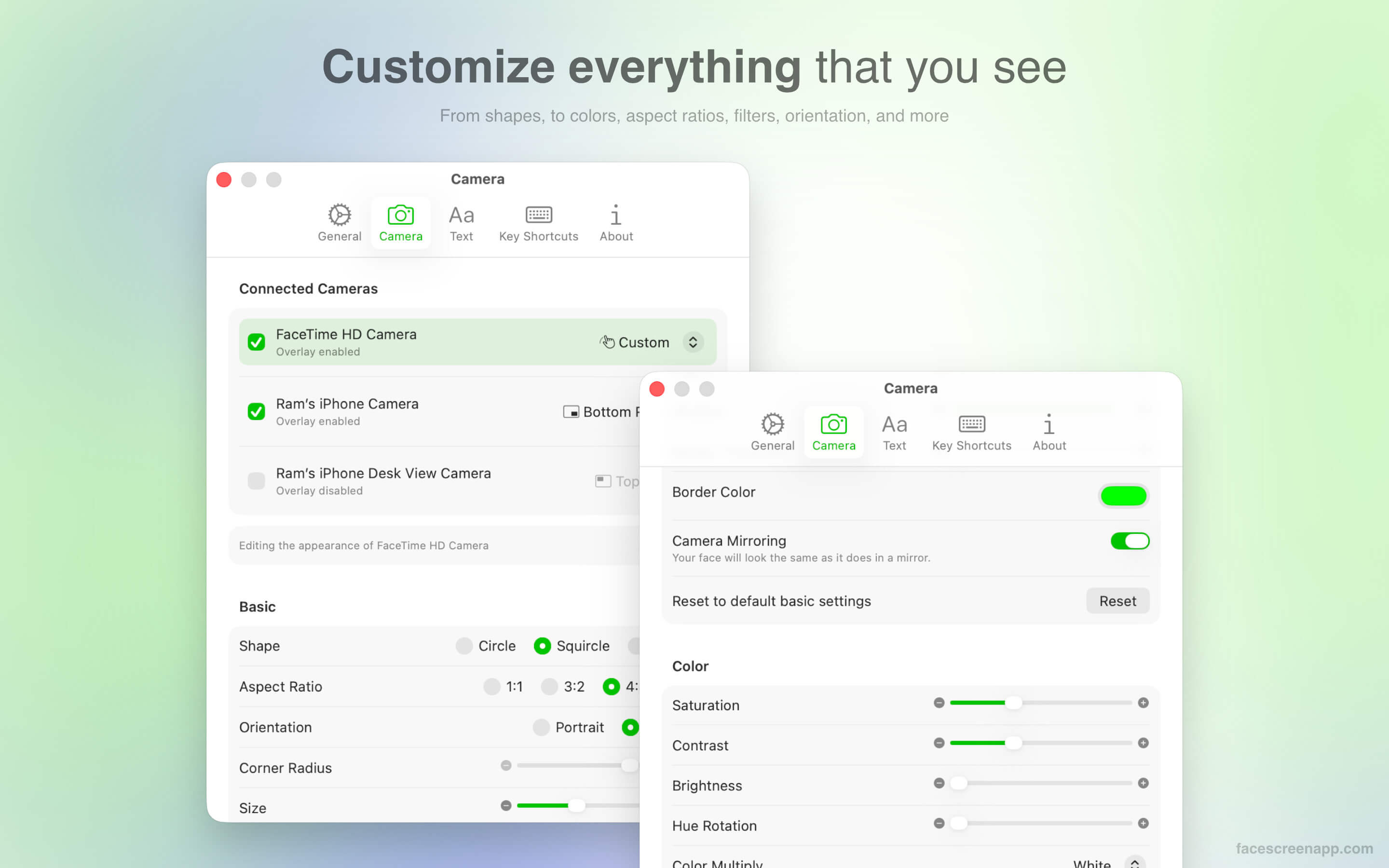
Your cameras can be connected to your computer wired or wirelessly. To enable multiple cameras at the same time, connect each camera (wired or wireless) to your Mac, then go to Settings... > Camera in FaceScreen and enable the cameras you want to use, as shown below.
If you want to learn the full workflow, see Getting started with FaceScreen on Mac.